JPEG Image Compressor & Resize
- 4.7
- Rating
- 1.00M
- Installs
- Free
- Price

 Analysis by App-foxy
Before installing a photo utility, I would ask one simple question: do I need to change how a picture looks, or just make the file easier to use? JPEG Image Compressor & Resize is for the second job. I found it most useful when a photo was already good enough but too large, poorly framed for its destination, or in an inconvenient format. That focused role makes it easier to judge than a broad editor: it is a practical tool for preparing images, not a replacement for creative editing.
My overall view is positive, with one important qualification: this is most useful when you want a fast preparation tool, not a complete photography workspace. The app is free to install, available for Everyone, and belongs to the Photography category. It was developed by DictionaryAndTranslator, has a 4.7 average from around 31 thousand ratings, and has passed over one million installs. Those figures suggest that the basic idea is resonating with a broad audience, but my recommendation comes more from the way its tools fit everyday workflows than from popularity alone.
What the app does well in real photo workflows
The first strength is its narrow purpose. Many phones already include excellent cameras and basic editing tools, yet they often make compression and exact resizing feel secondary. A picture can look perfect on the screen and still be awkwardly large when attached to an email, submitted through an online form, or shared with someone using limited storage. This app puts those practical adjustments at the center, which saves time when appearance is already acceptable and the real problem is file size or shape.
You May Also Like

 Blood Strike: 2.5 Anniversary
Blood Strike’s Loadouts Turn Every Drop Into a Tactical Gamble
A close look at Blood Strike’s custom loadouts: how fast access to signature weapons reshapes its battle royale rhythm, rewards preparation, and narrows the gap between fights.

 Pandora - Music & Podcasts
Pandora’s Music Is Easy to Start, but Harder to Recover
Pandora’s strength is its low-effort path from a seed to a station. Its weak spot is how much confidence it asks you to place in connection, setup, and quiet recovery.

 8 Ball Pool
 Is Built on Rivalries, Rematches, and Routine
A close look at the rivalries, rematches, shared routines, and unanswered safety questions that turn a quick pool match into a persistent mobile community.

 Samsung Music
’s Quiet Strength Is Playing What You Already Own
Its reach comes less from spectacle than from dependable access to a personal library. That simplicity is both the app’s strongest retention engine and its ceiling.

 AccuWeather: Weather Radar
AccuWeather Review: A Quick, Clear Forecast for Everyday Decisions
For everyday plans, the best forecast is the one you can understand quickly. AccuWeather makes rain timing, radar, and local conditions easy to act on, with a few trade-offs.

 Hill Climb Racing
Why Hill Climb Racing Still Turns Crashes Into One More Run
A tiny car, a bumpy hill and one more upgrade: Hill Climb Racing keeps resurfacing because its simple chaos makes every near-miss feel personal.
More From Our News Desk



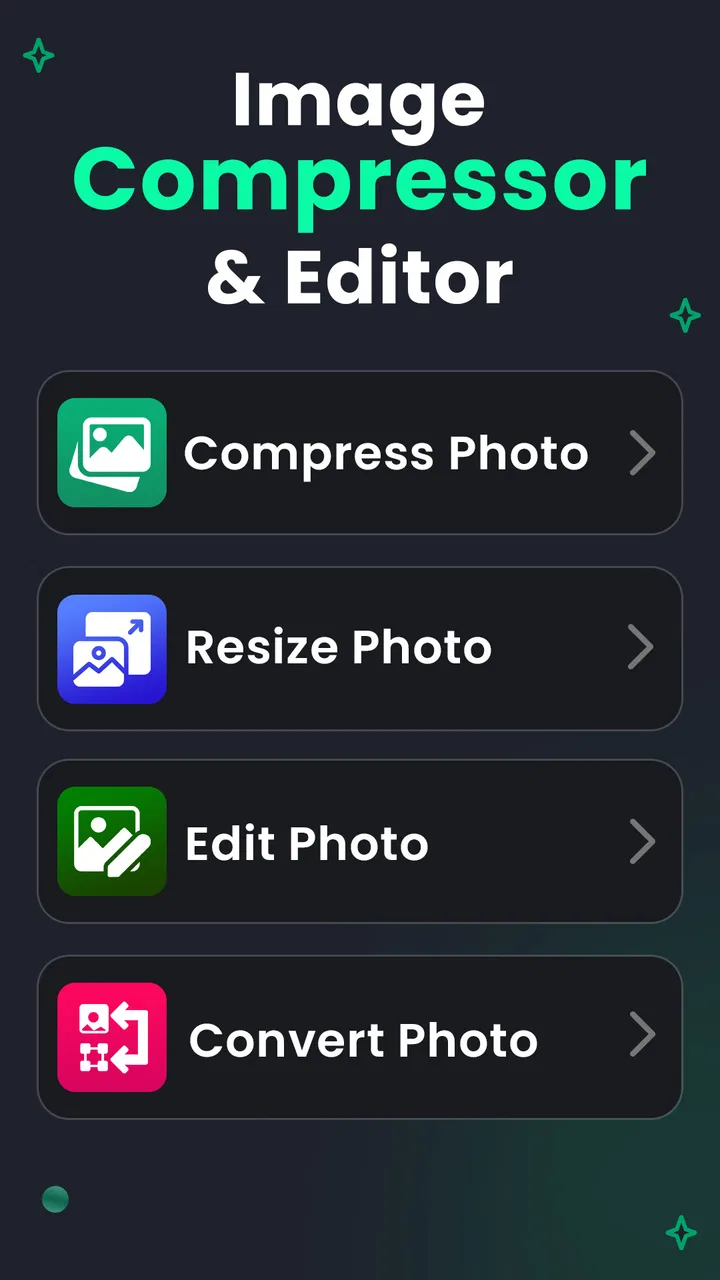
I found the combination of compression, resizing, cropping, and conversion more useful than any one tool by itself. A photo may need to be cropped before it is compressed, or resized before conversion makes sense. Keeping these tasks together means I can prepare an image in a single workflow instead of moving between a gallery editor, a separate converter, and a file utility. That is especially helpful when I am working with several pictures for the same purpose and want to apply the same general approach to each one.
The most important judgement call is how aggressively to reduce an image. Compression is not automatically an improvement. A smaller file is easier to share, but too much reduction can make text, hair, foliage, and fine edges look muddy. I would begin with a moderate adjustment, inspect the result at full size, and only then go smaller if the image is being used for a casual message or a quick online upload. For a document, product photo, or anything that may be printed, I would protect clarity and use resizing carefully rather than chasing the smallest possible file.
Resizing is valuable when the original dimensions are far beyond what the destination needs. A phone camera can produce an image that is unnecessarily large for a profile picture, a simple listing, or a form attachment. Reducing the dimensions before sending it can make the final file easier to handle while preserving a cleaner result than repeatedly compressing the original. I prefer to keep the untouched photo and work on a copy, because that gives me a safe fallback if the smaller version turns out to be too soft.
Cropping is another deceptively useful part of the package. It can remove empty background, straighten the visual emphasis of a snapshot, or prepare a picture for a space with a different shape. The trade-off is that cropping removes information permanently from the exported version. I would therefore crop with the destination in mind: a wide image for a banner-like space needs a different decision from a square avatar or a narrow phone display. The app is helpful here because cropping belongs in the same preparation stage as compression instead of being treated as an unrelated creative edit.
Conversion can solve compatibility problems, but I would not treat it as a magic quality upgrade. Changing a file type may make it easier for another service or device to accept, yet it cannot restore detail that has already been discarded. My practical order would be to preserve the original, crop only what is necessary, resize to a sensible working dimension, and then choose compression or conversion according to where the image is going. That sequence avoids making the file smaller several times in a row.
A useful routine for sharing and uploading
One scenario where I would recommend this app is preparing a group of holiday photos for a family chat. I would keep the originals in the phone gallery, select copies for sharing, remove distracting edges with the crop tool, reduce dimensions that are excessive for a phone screen, and then compress them enough to make sending comfortable. The benefit is not just smaller files; it is having one place to make the decisions in a deliberate order.
The same routine works for online marketplace pictures. A seller may want the object to remain clear while removing empty surroundings and avoiding an unnecessarily heavy upload. In that case, I would crop the frame around the item, preserve enough resolution to show texture and condition, and use compression conservatively. A very small image may upload quickly but create doubt about the product, so the right target is “easy to open and still trustworthy,” not simply “as small as possible.”
For email attachments, I would use the app when the original camera files are too large for the recipient’s needs. I would not use it to replace a document scanner when the image contains tiny writing. A scan may require sharper treatment and careful handling of contrast, while this utility is better suited to ordinary photographs and general image preparation. That distinction prevents a common mistake: assuming that every image benefits from the same compression choice.
Another less obvious use is keeping a set of images visually consistent before placing them in a presentation or personal archive. If one picture is enormous and another is much smaller, the collection can become awkward to handle even when both look fine individually. Resizing copies to a common practical scale makes the set easier to organize. I would still check orientation and framing one image at a time, because matching dimensions does not automatically create matching composition.
Small workflow choices that prevent avoidable rework
I would decide where each image is going before opening the tools. A portrait intended for a profile slot, a landscape photo for an email, and a close-up of a receipt do not need the same crop or reduction. Thinking about the destination first helps avoid a common frustration: making a file compact, then discovering that the important subject has been cut off or the detail needed by the recipient has become hard to read.
For a batch of related pictures, I would also test the workflow on one representative image before repeating it. A landscape and a portrait from the same event may respond differently to the same crop, and a setting that looks acceptable on a bright outdoor photo might soften a darker one. This small check costs little and reduces the chance of ending up with a whole set that needs to be processed again.
When an image is being sent through a form or a service that rejects large files, I would make a copy with a clear purpose rather than overwriting my only version. The smaller copy can be used for the upload; the original remains available if the destination later asks for a clearer image. That habit is especially worthwhile for receipts, records, and product photos, where a detail that seems unnecessary on a phone can matter when someone else examines the picture.
Where the focused design becomes a limitation
The app’s simplicity is also its main weakness. Anyone expecting layers, brushes, color correction, filters, retouching, text overlays, or advanced portrait controls should look elsewhere. A full editor is the better choice when the image itself needs creative or corrective work. This tool makes a prepared picture more manageable; it is not designed to turn an ordinary shot into a finished visual project.
There is also a quality trade-off that no interface can eliminate. Compression can introduce visible artifacts, resizing can soften detail, and cropping can remove context. The app gives you access to the relevant operations, but the user still has to judge the result. I would be cautious with important memories, evidence photos, artwork, and images containing small labels. For those, I would save an untouched original and compare the processed copy before deleting anything.
People who process large collections may also find a focused mobile utility less comfortable than a desktop workflow. A phone is convenient for a few images captured on that same device, but selecting, checking, and organizing many files can become repetitive. If your regular work involves extensive batch preparation, a computer-based image manager or a more specialized workflow may be more efficient. I would choose this app for occasional and moderate tasks where convenience matters more than automation.
Its free availability makes trying it low-risk, although the app includes in-app purchases ranging from $0.99 to $99.99 per item. I would pay attention to any purchase prompt and decide whether the available free workflow already covers my needs before spending money. For a person who only occasionally compresses a picture, the free starting point may be enough. Someone using it constantly should evaluate the cost against the time saved and the importance of any additional access offered in the app.
How it compares with other ways to prepare photos
The built-in gallery editor is the easiest alternative if all I need is a quick crop or a small visual adjustment. It is already familiar and keeps a casual edit close to the photo. I would choose this app instead when the task is specifically about file size, dimensions, or format, rather than improving color or appearance. If those needs are rare, switching tools may add more steps than it saves.
A dedicated photo editor makes more sense when the picture needs retouching, color correction, text, or a carefully composed creative treatment. A desktop image manager is a better fit for repeated work across a large collection, especially when file organization and a bigger screen matter. Cloud photo services suit people whose main concern is backup and access across devices. The useful distinction is not that one option is universally better: this app sits between a basic gallery tool and a full editing or organizing workflow, for people who need direct file preparation on a phone.
There is a small cost to switching from a familiar editor: I have to learn where the relevant controls are and make sure I am working with the right copy. I would not install another utility just to crop a picture once in a while. But if large attachments, awkward dimensions, or format compatibility keep interrupting ordinary sharing, having those operations in one focused place can make the extra step worthwhile.
Who should install it, and who should skip it
I think it is a strong fit for students, casual photographers, small online sellers, families sharing pictures, and anyone who regularly encounters “this file is too large” problems. It is also useful for people who want a direct tool without learning a complex editing program. The current version is 3.1.0 and requires Android 8.0 or later, so it suits users with reasonably recent Android devices while excluding phones that cannot meet that system requirement.
I would especially suggest it to someone who understands that image quality and file size are connected. The best results come from making a purpose-based choice: a preview can be small, a product image needs readable detail, and a keepsake should retain as much quality as practical. The app gives a convenient place to make those adjustments, but it rewards users who inspect their output instead of accepting the smallest result automatically.
I would skip it if your priority is artistic editing, professional color work, catalog-scale automation, or a polished desktop publishing workflow. A dedicated editor will offer deeper control, while a cloud photo service may be more convenient if your main goal is automatic backup and sharing. The usual gallery editor may also be enough for someone who only needs occasional cropping and never struggles with file size. This app earns its place when compression, exact dimensions, and conversion are recurring needs rather than rare curiosities.
My verdict after using it
The clearest reason to choose this app is control over practical image preparation without the weight of a full editor. I like that its purpose is easy to understand: take a photo that already exists and make it more suitable for the next step. Compression, resizing, cropping, and conversion cover a useful chain of problems, and the workflow can be applied to sharing, uploading, storing, and organizing pictures.
My advice is to preserve originals, process copies, and judge every result at the size where it will actually be viewed. Start gently with compression, resize before repeatedly reducing quality, and crop according to the destination rather than by habit. Those small decisions make a bigger difference than simply choosing the most aggressive setting.
In the end, I see JPEG Image Compressor & Resize as a practical companion for Android users who want a free, focused photography utility. It is not the right answer to every image task, and its in-app purchase range means I would review prompts carefully, but it handles a common set of problems with useful clarity. If your phone is full of pictures that are perfectly good but inconveniently large, this is the kind of app I would recommend trying first.
FAQs for JPEG Image Compressor & Resize
01What is JPEG Image Compressor & Resize used for?
JPEG Image Compressor & Resize is designed to reduce the file size of photos and adjust their dimensions before sharing or uploading them. It can be useful when you need to save storage space, send images through messaging apps, meet website upload limits, or prepare pictures for email and social media. The app focuses on straightforward image compression and resizing rather than advanced photo editing.
02Does compressing an image noticeably reduce its quality?
Image quality depends on the compression level you choose and the original photo. Lower file sizes generally require stronger compression, which may introduce visible artifacts, soften details, or affect text clarity. For everyday photos, moderate compression often provides a practical balance between appearance and size. It is recommended to keep the original image and preview the result before replacing or deleting it.
03Can I resize several photos at the same time?
Batch processing depends on the version of JPEG Image Compressor & Resize installed on your device. Some releases may allow multiple images to be selected, while others are intended mainly for processing one picture at a time. Before downloading, check the app’s current store description and permissions. If batch resizing is unavailable, larger collections may require repeating the process individually.
04Where are the compressed or resized images saved?
Processed images are normally saved in a separate folder, a chosen destination, or the application’s output directory, depending on the operating system and app version. After completing an operation, use the save, share, or open-folder option to confirm the location. If you cannot find a result, check your device’s gallery, file manager, Downloads folder, and any folder named after the application.
05Does JPEG Image Compressor & Resize work offline, and is it safe to use?
Basic compression and resizing generally do not require an internet connection because the image processing can be performed directly on the device. However, advertising, analytics, updates, or optional cloud-related features may require network access. Review the permissions requested before installation, especially access to photos and files. Avoid deleting originals until you have confirmed that the exported images look correct and are saved properly.
Pros
- Compresses JPEG files quickly without noticeable quality loss.
- Supports batch processing for handling multiple images at once.
- Offers flexible resize settings for social media and sharing.
- Simple interface suitable for users with little editing experience.
- Processed images can reduce storage and upload time significantly.
Cons
- JPEG compression is unsuitable for images requiring transparent backgrounds.
- Aggressive compression may create visible artifacts in detailed photos.
- Some advanced editing options may be limited compared with full photo editors.
- Batch processing can be slower with very large image collections.
- Output quality may require trial and error for the best balance.

JPEG Image Compressor & Resize
Gallery